Complete Guide to Zoho Workflow Automation for Growing Teams

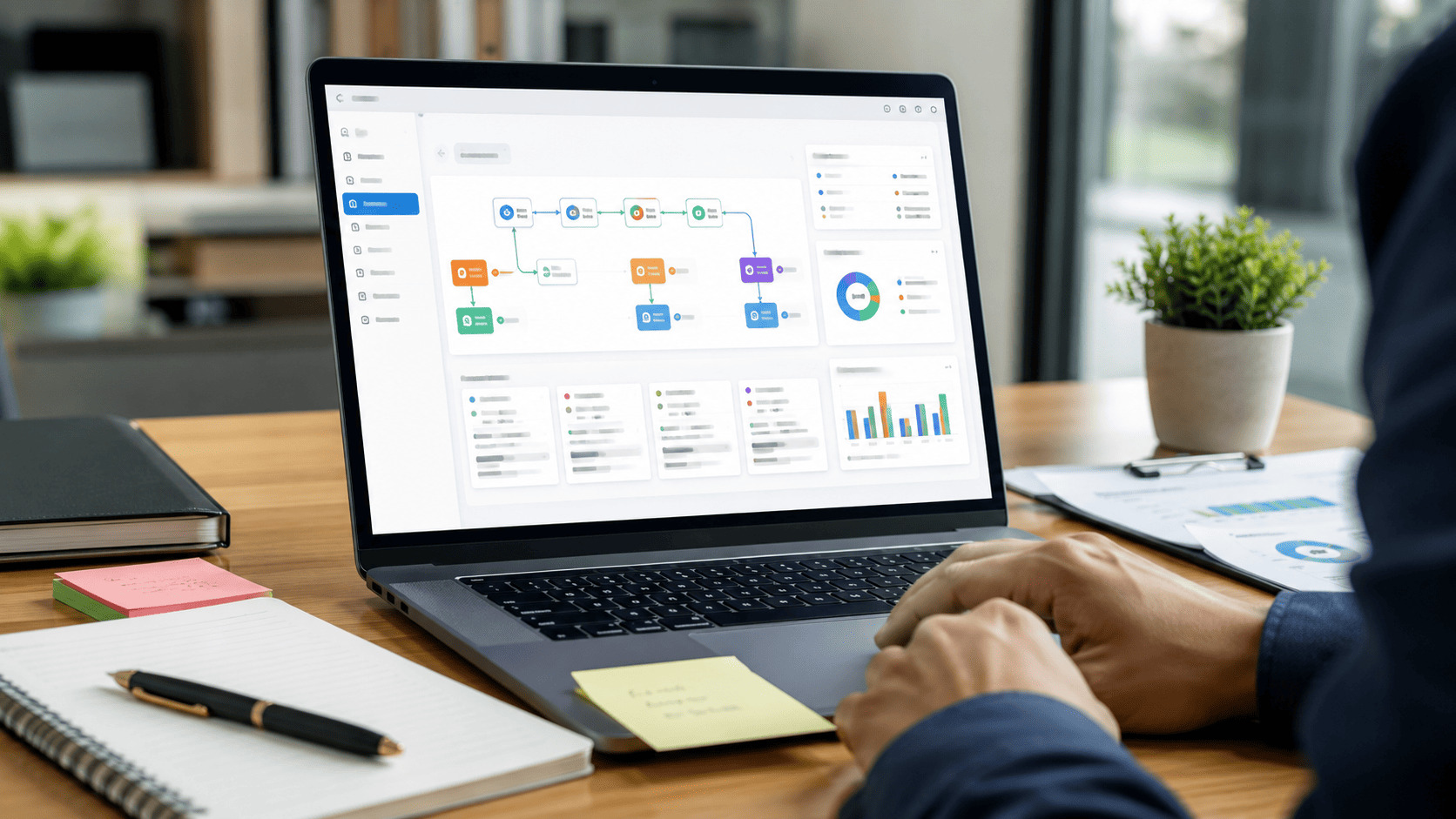
Zoho workflow automation helps growing teams turn repeatable work into structured, trackable processes. Instead of relying on manual updates, scattered reminders, and person-to-person follow-ups, teams can use Zoho to trigger actions when a form is submitted, a record changes, an approval is needed, or a scheduled task should run.
For small teams, manual work can feel manageable. For growing teams, the same work starts to create delays, missed handoffs, duplicate data entry, and unclear ownership. Zoho is useful for workflow automation because it connects the steps people already follow and makes them more consistent.
Sales teams can route leads. Operations teams can assign tasks. Finance teams can collect approvals. Customer support teams can move requests to the right person. Managers can see where work is stuck instead of asking for status updates across chat threads and spreadsheets.
This guide explains how Zoho workflow automation works, where it fits best, what features matter, and how to plan workflows that stay useful as your team grows.
What Is Zoho Workflow Automation?
Workflow automation in Zoho is the use of Zoho apps to trigger actions, route work, update records, send alerts, request approvals, and connect data across systems without manual follow-up. The core idea is simple: when a defined event happens, Zoho runs the next step based on the rules you set.
In Zoho Creator, workflows are rule-based automations that run when defined events happen, such as form submissions, field updates, approvals, payments, schedules, and batch workflows. Zoho CRM workflow rules can send email notifications, assign tasks, and update record fields when specified conditions are met. Zoho Flow extends automation across Zoho products and external tools, with support for 1,000+ cloud and on-prem apps.
For growing teams, this matters because work usually breaks down between steps, not inside a single task. A lead is captured but not assigned. A request is approved but not logged. A support issue is resolved but not reported. A finance document is reviewed but not moved to the next person.
A basic Zoho workflow usually includes four parts:
- Trigger: the event that starts the workflow, such as a new form entry or CRM record update.
- Conditions: the rules that decide what should happen next.
- Actions: the tasks Zoho performs, such as sending an email, updating a field, creating a task, or calling another app.
- Owners: the people or teams responsible for review, approval, or exception handling.
The result is faster and cleaner work. Teams can reduce repeated data entry, make ownership clearer, and keep processes moving without asking someone to remember every step.
How It Works in Zoho
Workflow automation in Zoho works by turning a business rule into a sequence of actions. The rule tells Zoho what to watch for, what conditions to check, and what should happen next.
A simple workflow may look like this:
- A new lead enters Zoho CRM.
- Zoho checks the lead source, location, budget, or service interest.
- The lead is assigned to the right sales owner.
- A follow-up task is created.
- An email alert is sent.
- The lead status is updated.
- A manager gets notified if the lead is high value.
The same logic applies across other teams. A form submission can start an approval. A support request can create an internal task. A paid invoice can trigger a fulfillment step. A missed deadline can notify a manager.
A useful workflow has a trigger, conditions, actions, exceptions, and reporting. The trigger starts the workflow. Conditions decide the path. Actions move the work forward. Exceptions catch cases that need human review. Reporting shows if the process is working or creating new bottlenecks.
That last part is important. Automation should not hide work from the team. It should make the process more visible. If records get stuck, approvals take too long, or data is missing, the system should make that clear.
Zoho workflow automation works best when it follows a real business process. The goal is not to automate every click. The goal is to remove repeatable friction from work that already has a clear pattern.
Why Growing Teams Use It
Growth adds pressure to daily operations. More leads, customers, requests, approvals, and internal handoffs create work that is easy to miss when it depends on memory.
Zoho workflow automation helps teams keep control without adding more admin work. The main benefits are practical:
| Benefit | Business Impact |
|---|---|
| Fewer manual updates | Teams spend less time copying data, changing fields, and sending routine follow-ups. |
| Cleaner handoffs | Each step has a clear owner, deadline, and next action. |
| Fewer errors | Repeated data entry and missed status changes become less common. |
| Better visibility | Managers can see open work, delayed approvals, and process bottlenecks. |
| More scalable operations | The same process can handle higher volume without relying on one person’s memory. |
For a growing company, these benefits matter because small process gaps become expensive at scale. A missed follow-up may lose a deal. A delayed approval may slow delivery. A manual finance step may create reporting issues. A support request may sit with the wrong person.
Automation does not remove the need for good management. It gives managers a clearer operating system for routine work.
Common Zoho Workflow Automation Examples
Zoho workflow automation can support many departmental workflows. The best use cases are repeatable, rule-based, and connected to a clear business outcome.
Sales Workflow Automation
Sales teams can use Zoho automation to keep leads moving without constant manual tracking.
Common sales workflows include assigning new leads by territory, industry, deal size, or service interest. The system can create follow-up tasks, send alerts for high-value opportunities, update lead status, and notify managers when a deal is inactive for too long.
A growing sales team needs speed, but it also needs control. Automation helps route work quickly while keeping the CRM as the main source of truth.
Customer Support Workflow Automation
Support teams can use workflows to route requests, escalate urgent issues, and keep customers informed.
A support workflow may assign a ticket based on topic, priority, language, customer type, or product. It may also notify a manager when an issue is not resolved within a defined time.
This helps when support volume increases and manual triage starts to slow the team down.
Marketing Workflow Automation
Marketing workflows can help teams manage campaign operations, lead capture, content requests, and handoffs to sales.
A form submission can create or update a contact. A high-intent inquiry can alert sales. A webinar registration can update a campaign field. A content request can move through review and approval.
Marketing automation should not only send messages. It should also improve the way data moves between marketing, sales, and reporting.
Finance Workflow Automation
Finance workflows are often approval-heavy. Zoho can help manage requests, payments, invoices, and documentation steps.
Common finance workflows include expense approvals, invoice review, payment status updates, purchase request routing, and reminders for missing documentation.
These workflows need clear controls because mistakes can create financial or compliance issues. Approval logic, access permissions, audit trails, and exception handling matter.
HR Workflow Automation
HR teams can use Zoho automation for recruiting, onboarding, internal requests, and employee documentation.
A candidate can move to the next stage after an interview score is submitted. A new hire can trigger onboarding tasks for IT, finance, HR, and the hiring manager. A time-off request can route to the right approver.
HR workflows work best when they reduce coordination work without making the process feel impersonal.
Operations Workflow Automation
Operations teams often manage cross-functional work. They may coordinate orders, service delivery, inventory updates, internal requests, documents, vendors, and customer communication.
Zoho can help operations teams assign tasks, update statuses, send alerts, and move data between systems.
This is where Zoho Flow can be useful because operations workflows often depend on more than one app.
Zoho Creator, Zoho CRM, and Zoho Flow: Which One Fits?
Automation in Zoho can mean different things depending on the product. The right choice depends on the workflow you need to build.
| Zoho Product | Best Fit | Common Automation Examples |
|---|---|---|
| Zoho CRM | Sales and customer relationship workflows | Lead routing, deal updates, follow-up tasks, alerts, field updates |
| Zoho Creator | Custom internal apps and process workflows | Approvals, forms, schedules, data validation, custom apps |
| Zoho Flow | Cross-app integrations | Syncing data between Zoho apps and third-party tools |
| Zoho Desk | Customer support workflows | Ticket routing, escalation, support notifications |
| Zoho Books | Finance and accounting workflows | Invoice actions, payment updates, approvals |
Zoho CRM is usually the better fit when the workflow is tied to leads, contacts, accounts, deals, or customer relationship data. Zoho Creator is often the better fit when the process needs a custom interface, custom data structure, or internal application. Zoho describes Creator as a low-code application development platform for building custom web and mobile applications with minimal coding experience.
Zoho Flow is useful when the process crosses product boundaries. If a CRM update needs to create a task in another tool, update a spreadsheet, send data to an email platform, or trigger an action in a third-party system, Flow may be the right layer. Zoho describes Flow as an integration platform for automating workflows across everyday apps.
Many teams use more than one Zoho product. The goal is not to pick the most powerful tool. The goal is to place each workflow where it naturally belongs.
Features to Look For in Zoho Workflow Automation
The right workflow automation setup should be easy enough for the team to use and strong enough to support the process as it grows.
| Feature | Why It Matters |
|---|---|
| Rule-based triggers | Starts workflows from real business events, such as form submissions, record updates, or scheduled actions. |
| Conditional logic | Routes work based on business rules, such as lead value, department, region, priority, or approval amount. |
| Approvals | Adds control when a process involves finance, HR, legal, procurement, or customer impact. |
| Role-based access | Limits who can view, edit, approve, or change workflow rules. |
| Integrations | Connects Zoho with external systems so work does not stop at one app. |
| Dashboards and reports | Shows open work, delayed approvals, stalled records, and workflow performance. |
| Error handling | Catches missing data, failed actions, rejected approvals, and broken integrations. |
| Scalability | Keeps workflows organized as the team adds more users, rules, records, and systems. |
Approvals deserve special attention. Zoho Creator approval workflows can assign custom approvers, use roles and hierarchy, and run actions such as email or SMS notifications after approval-related events.
A workflow automation setup should also be maintainable. If only one person understands how a workflow works, the process is fragile. Good naming, documentation, reporting, and ownership make automation safer to scale.
How to Plan Zoho Workflow Automation
The biggest mistake is starting with the tool instead of the process. Before building anything, define what the workflow should accomplish.
A practical planning process looks like this:
- Map the current process. Document each step from trigger to completion. Include owners, systems, required data, approvals, exceptions, and common delays.
- Choose the right workflow to automate first. Start with a process that is repetitive, visible, and easy to measure. Lead routing, internal request intake, approval routing, support escalation, and onboarding tasks are strong candidates.
- Define clear rules. Write the trigger, conditions, actions, owners, deadlines, and fallback paths in plain language before building them in Zoho.
- Keep people in the right places. Some workflows can run automatically. Others need review when they involve money, customer impact, sensitive data, or irreversible actions.
- Test with real cases. Include normal cases, edge cases, missing data, duplicate records, rejected approvals, and delayed responses.
- Document the workflow. Explain what it does, what starts it, who owns it, which systems it touches, and what to do when something fails.
- Review after launch. Look for ignored alerts, stuck records, slow approvals, missing data, and rules that need adjustment.
This step matters because automation does not fix unclear ownership. If the team cannot explain the process in plain language, the workflow is not ready to build.
Zoho Workflow Automation and Low-Code Development
Low-code is one of the reasons Zoho is useful for workflow automation. It lets teams create forms, apps, logic, and workflows with less custom development than a traditional software build.
This is helpful when a business process is specific, but the team does not want to build a full custom application from scratch.
For example, a company may need a vendor onboarding workflow. The process may include intake forms, document uploads, internal approvals, finance review, contract status, and notifications. A standard CRM workflow may not fit. A full custom app may be more than the team needs. Zoho Creator can sit in the middle.
Low-code does not remove the need for process design. It makes the build faster, but the team still needs clean data, clear ownership, permissions, testing, and support.
Workflow Automation vs. RPA
Workflow automation and robotic process automation are related, but they solve different problems.
Workflow automation is usually built around business rules, data, systems, and process logic. It routes work, updates records, sends notifications, requests approvals, and connects apps.
RPA is often used to imitate human actions in a user interface. It may click buttons, copy data, log into systems, or move information between tools that do not have strong integration options.
| Category | Workflow Automation | RPA |
|---|---|---|
| Main focus | Process logic and system actions | Repeating user interface actions |
| Best for | Structured workflows and approvals | Legacy systems and repetitive screen tasks |
| Data flow | Often uses records, APIs, and app integrations | Often works through the interface |
| Stability | More stable when systems are integrated | Can break when screens change |
| Human role | Review, approval, exception handling | Supervision and exception handling |
Workflow automation in Zoho is usually the better place to start when the work can be handled through Zoho apps, business rules, and integrations. RPA may make sense when a team needs to automate a legacy process that lacks usable APIs or integration support.
Mistakes to Avoid With Zoho Workflow Automation
Zoho gives teams many automation options, but the quality of the result depends on how the workflow is planned.
Do not automate a broken process. If ownership, data fields, approval rules, or handoffs are unclear, automation will make the confusion faster.
Do not create too many alerts. Notifications should point to moments that need action. Too much noise trains people to ignore the system.
Do not skip exception handling. Every workflow needs a plan for missing data, rejected approvals, failed integrations, duplicate records, and stalled tasks.
Do not give too many people edit access. Workflow rules can affect important data and customer-facing actions. Limit who can create, edit, or disable automations.
Do not build without reporting. If there is no way to measure the workflow, it becomes hard to improve.
Do not make the first workflow too complex. Start with a focused process that solves a clear problem. Build confidence before moving into cross-system automation.
How to Choose the Right Zoho Workflow Automation Setup
The right setup depends on the process, systems, risk level, and team maturity.
Use these questions before building:
- What business problem should this workflow solve?
- Where does the workflow start and end?
- Which Zoho app owns the core record?
- Does the workflow need external apps?
- What is the risk if the system takes the wrong action?
- Who will maintain the workflow after launch?
- How will the team measure success?
These questions keep the project grounded. A workflow should solve a specific operational issue, not exist because automation sounds useful.
The core record should usually live in the app that owns the business process. Leads and deals usually belong in Zoho CRM. Custom operational records may belong in Zoho Creator. Tickets may belong in Zoho Desk. Financial records may belong in Zoho Books.
The risk level should shape the design. Creating an internal task is low risk. Sending a customer message, approving a refund, changing a contract status, or updating financial data is higher risk. Higher-risk workflows need approvals, permissions, validation, and audit visibility.
Every workflow also needs an owner. That person should know what the workflow does, how to update it, and how to respond when it fails.
When Zoho May Not Be Enough
Zoho can cover many business processes, but there are cases where a broader solution may be needed.
A team may need custom development when:
- The workflow requires complex logic across many systems.
- The process depends on AI decisions or document understanding.
- Data must be transformed before it enters Zoho.
- The workflow needs advanced exception handling.
- Existing Zoho apps do not match the business model.
- The team needs a custom user interface.
- Reporting requirements go beyond standard dashboards.
- The process needs deeper security, compliance, or audit controls.
In these cases, Zoho can still be part of the solution. It may act as the CRM, workflow layer, app builder, or reporting source. The key is designing the full process before deciding how much should live inside Zoho and how much should be custom-built.
FAQ
What Is Zoho Workflow Automation?
Workflow automation in Zoho is the use of Zoho apps to trigger actions, route work, update records, send notifications, request approvals, and connect data across systems. It helps teams reduce manual follow-up and make repeatable processes more consistent.
Which Zoho App Is Best for Workflow Automation?
Zoho CRM is a strong fit for sales and customer relationship workflows. Zoho Creator is useful for custom apps, forms, approvals, and internal processes. Zoho Flow is useful when workflows need to connect Zoho with third-party apps.
Can Zoho Automate Approvals?
Yes. Zoho Creator supports approval workflows where teams can define approval criteria, set multiple approval levels, assign approvers, and set actions for approval or rejection.
Is Zoho Workflow Automation Good for Growing Teams?
Yes, when the process is repeatable and the rules are clear. Growing teams often use Zoho automation for lead routing, approvals, onboarding, customer support, finance requests, and cross-system updates.
What Is the Difference Between Zoho Creator and Zoho Flow?
Zoho Creator is mainly used to build custom apps and automate workflows inside those apps. Zoho Flow is mainly used to connect different apps and automate actions between them.
Do I Need Developers for Zoho Workflow Automation?
Not always. Many workflows can be built with Zoho’s low-code and no-code tools. Developers or implementation specialists are useful when the workflow is complex, touches multiple systems, requires custom logic, or needs advanced reporting and security controls.
How Should a Team Start With Zoho Workflow Automation?
Start with one clear process that is repetitive, measurable, and painful enough to matter. Map the current workflow, define the trigger and actions, test with real cases, and review results after launch.
Final Thoughts
Workflow automation in Zoho works best when it is tied to a clear business process. The goal is not to automate every possible action. The goal is to make important work move with less friction, fewer errors, and better visibility.
For growing teams, the best starting point is usually a process that already happens often and already causes delays. Lead routing, approvals, onboarding, support escalation, and finance requests are common examples.
A good Zoho automation setup should be simple enough for the team to understand, structured enough to scale, and flexible enough to change as the business grows.
If your team uses Zoho but still relies on spreadsheets, manual follow-ups, and disconnected tools, we can help design and implement workflows that match how your business actually operates. That can include Zoho CRM automation, Zoho Creator apps, Zoho Flow integrations, reporting, permissions, and custom logic where standard setup is not enough.